

Hands on Broadcom’s acquisition of VMware has sent many scrambling for alternatives.
Two of the biggest beneficiaries of Broadcom’s price hikes, at least on the free and open source side of things, have been the Proxmox VE and XCP-ng hypervisors.
At the same time, interest in enterprise AI has taken off in earnest. With so many making the switch to these FOSS-friendly virtualization platforms, we figured at least some of you might be interested in passing a GPU or two through to your VMs to experiment with local AI workloads.
In this tutorial, we’ll be looking at what it takes to pass a GPU through to VMs running on either platform, and go over some of the more common pitfalls you may run into.
Limitations and prerequisites
Before we make any config changes to our hypervisors, it’s important to understand some of the limitations of these platforms. For one, this guide will be looking at PCIe passthrough. This means that you’ll be limited to one GPU per virtual machine.
Some Nvidia cards may support vGPU capabilities on Proxmox via their own proprietary driver, however this requires a virtual workstation license to use and is therefore beyond the scope of this tutorial.
At the time of writing, XCP-ng lacks support for vGPU style partitioning on Nvidia and only supports PCIe passthrough to the VM.
We’ll be focusing primarily on Linux guests. It should work fine for other operating systems, including Windows Server, but your mileage may vary.
This guide assumes you are running either XCP-ng 8.2 with Xen Orchestra 5.92, or Proxmox VE 8.2, and have an Nvidia or AMD graphics card already installed in the system.
Enabling PCIe passthrough on XCP-ng
To kick things off, we’ll start with XCP-ng – a descendant of the Citrix Xen Server project – as it’s the easier of the two hypervisors to pass PCIe devices through, at least in this vulture’s experience.
By default, graphics cards get assigned to Dom0 (the management VM) and are used for display output. However, with a couple of quick config changes, we can tell Dom0 to ignore the card so that we can use the hardware for acceleration in another VM — you may want to set up a display via another GPU, via the CPU, or the motherboard’s integrated graphics.
Before you get started, make sure that an IOMMU is enabled in BIOS. Short for I/O memory management unit, sometimes called Intel VT-d or AMD IOV, this is used by the hypervisor to strictly control which hardware resources each guest VM can directly access, ultimately allowing a given virtual machine to communicate directly with the GPU.
On server and workstation hardware, an IOMMU is usually enabled by default. But if you’re using consumer hardware or running into issues, you may want to check your BIOS to ensure it’s turned on.
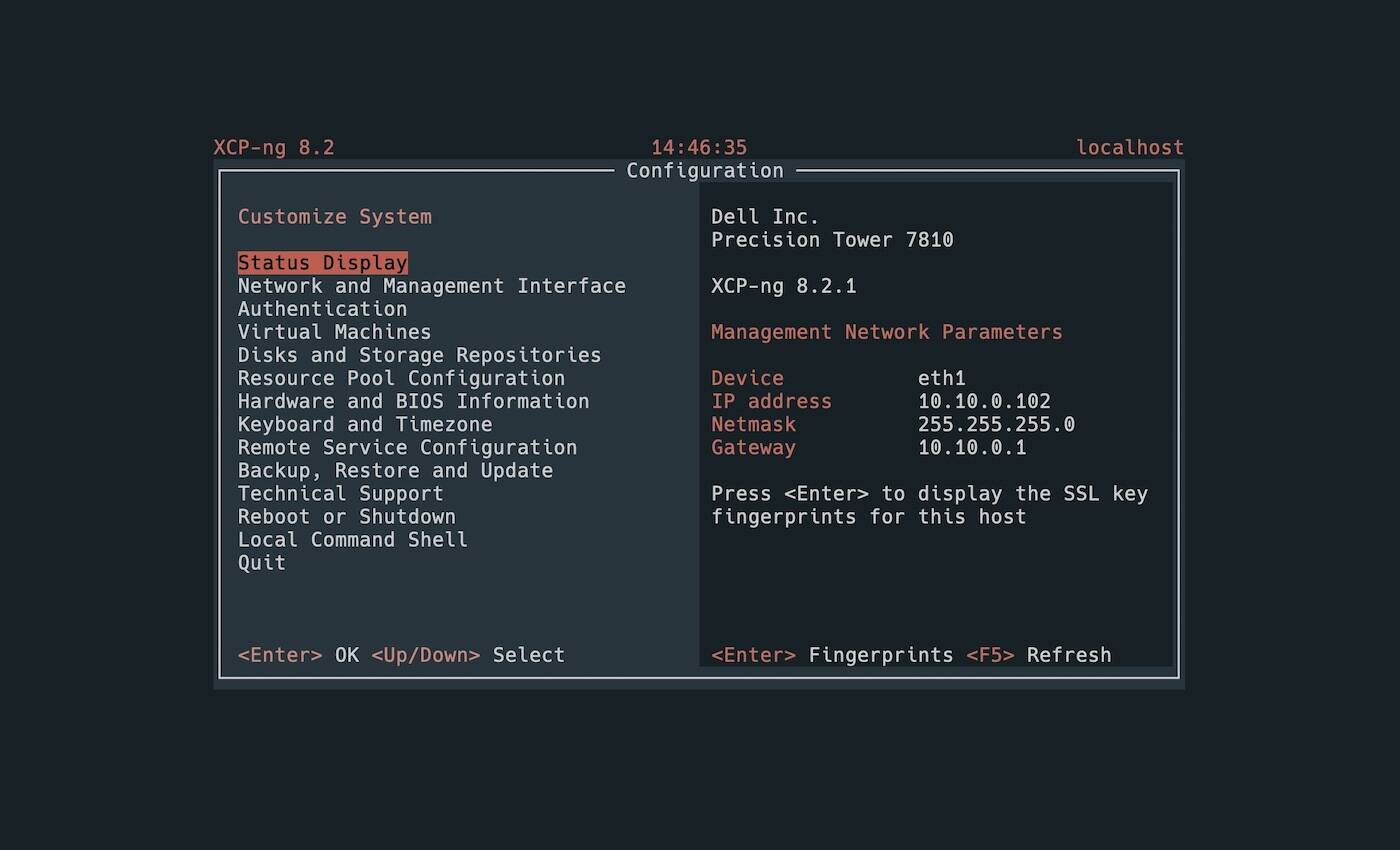
Next connect to your XCP-ng host via KVM or SSH, as shown above, and drop to a command shell. From here we’ll use lspci to locate our GPU:
lspci -v | grep VGA
lspci -v | grep audio
If VGA isn’t working, try one of the following instead:
lspci -v | grep 3D
lspci -v | grep NVIDIA
lspci -v | grep AMD
You should be presented something like this:
03:00.0 3D controller: Nvidia Corporation GP104GL [Tesla P4] (rev a1)
Next, note down the ID assigned to the GPU’s graphics compute and audio outputs. In this case it’s 03:00.0. We’ll use this to tell XCP-ng to hide it from Dom0 on subsequent boots. As you can see in the command below we’ve plugged in our GPU’s ID after the 0000: to hide that specific device from the management VM:
/opt/xensource/libexec/xen-cmdline –set-dom0 “xen-pciback.hide=(0000:03:00.0)”
With that out of the way we just need to reboot the machine and our GPU will be ready to be passed through to our VM.
reboot
Passing a GPU to a VM in XCP-ng
With Dom0 no longer in control of the GPU, you can move on to attaching it to another VM. Begin by spinning up a new VM in Xen Orchestra as you normally would. For this tutorial we’ll be using the latest release of Ubuntu Server 24.04.
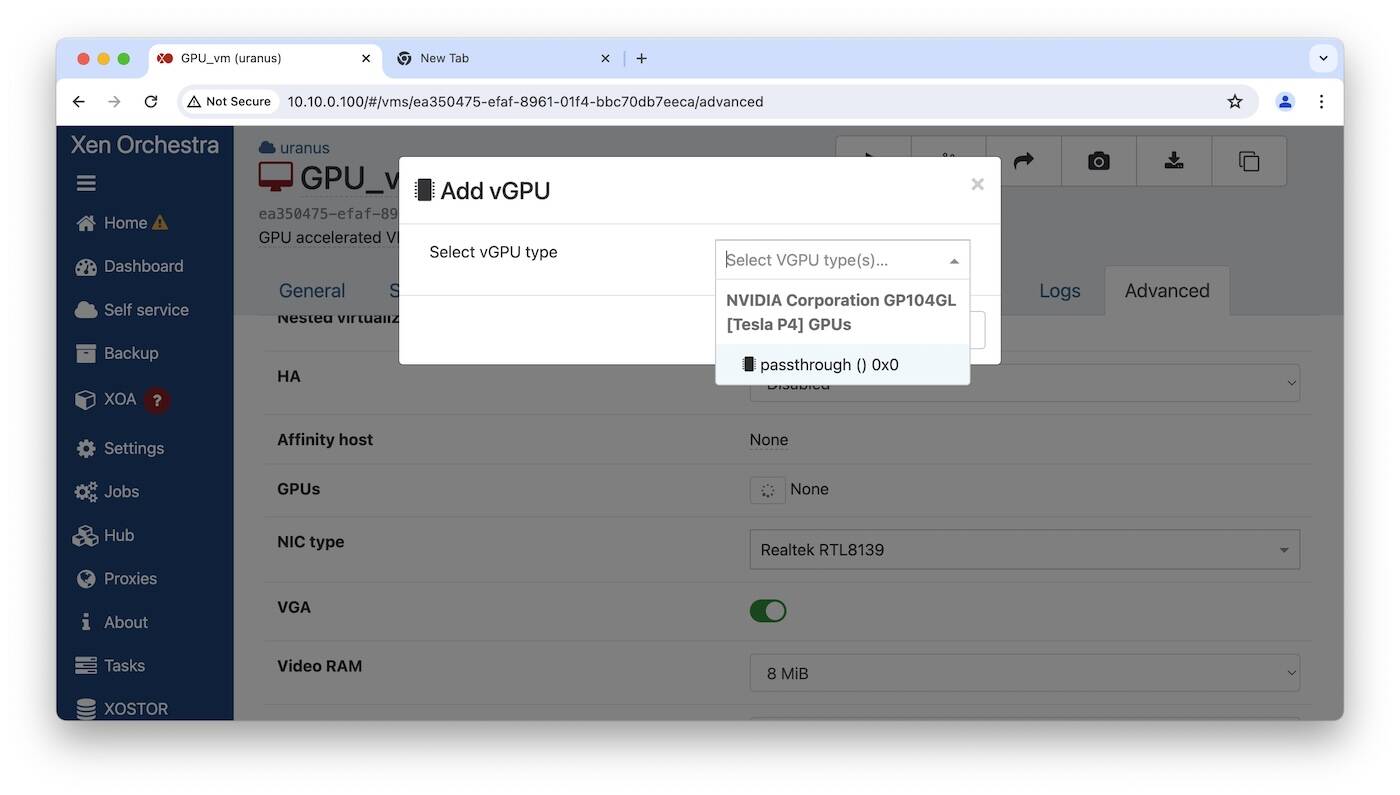
Once your OS is installed in the new virtual machine, shutdown the VM, and head over to the VM’s “Advanced” tab in the Orchestra web interface, scroll down to GPUs, and click the + button to select it, as pictured above. It will appear as passthrough once added.
With that out of the way, you can go ahead and start up your VM. To test whether we passed through our GPU successfully, we can run lspci this time from inside the Linux guest VM.
lspci -v
If your GPU appears in the list, you’re ready to install your drivers. Depending on your OS and hardware, this may require downloading driver packages from the manufacturer’s website. If you happen to be running a Ubuntu 24.04 VM with an Nvidia card, you can simply run:
sudo apt update && sudo apt install nvidia-driver-550-server
And if you want the CUDA toolkit, you’d also run:
sudo apt install nvidia-cuda-toolkit
If you’re running a different distro or operating system, you will want to check out the GPU vendor’s website for drivers and instructions.
Now that you’ve got an accelerated VM up and running, we recommend checking out some of our hands-on guides linked at the bottom of this story.
If things haven’t gone smoothly, check out XCP-ng’s documentation on device passthrough here.
Enabling PCIe passthrough on Proxmox VE
Enabling PCIe passthrough on Proxmox VE is a little more involved.
Like with XCP-ng, this means we need to tell Proxmox not to initialize the graphics card we’d like to pass through to our VM. Unfortunately, it’s a bit of an all-or-nothing situation with Proxmox, as the way we do this is by blacklisting the driver module for our specific brand of GPU.
To get started, install your GPU card in your server and boot into the Proxmox management console. But, before we go any further, make sure that Proxmox sees our GPU. For this we’ll be using the lspci utility to list our installed peripherals.
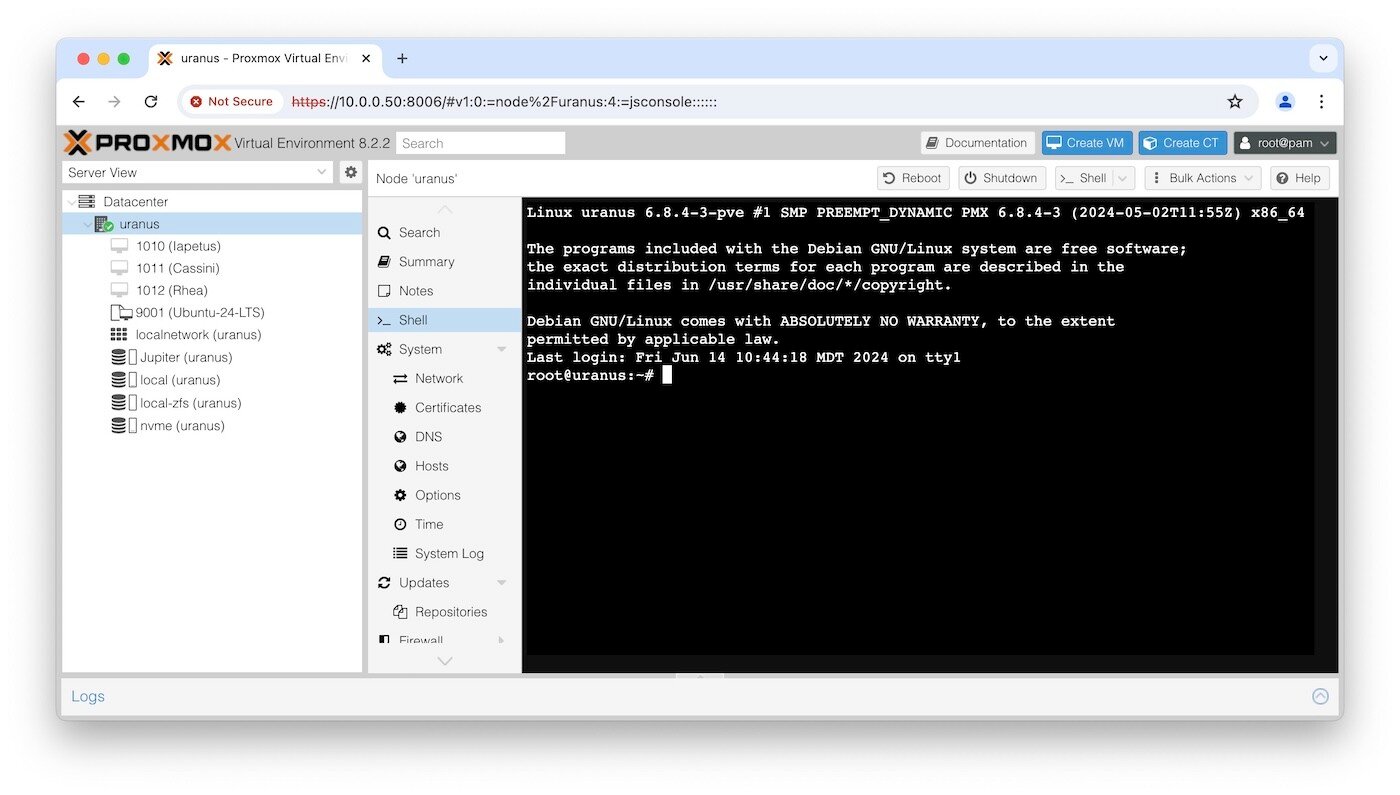
From the Proxmox management console, select your node from the sidebar, open the shell, as pictured above, and then type in:
lscpi -v | grep VGA
lspci -v | grep audio
If nothing comes up, try one of the following:
lspci -v | grep 3D
lspci -v | grep NVIDIA
lspci -v | grep AMD
You should see a print out similar to this one showing your graphics card:
2e:00.0 VGA compatible controller: Nvidia Corporation AD102GL [L6000 / RTX 6000 Ada Generation] (rev a1) (prog-if 00 [VGA controller])
Subsystem: NVIDIA Corporation AD102GL [RTX 6000 Ada Generation]
2e:00.1 Audio device: NVIDIA Corporation AD102 High Definition Audio Controller (rev a1)
Subsystem: NVIDIA Corporation AD102 High Definition Audio Controller
Now that we’ve established that Proxmox can actually see the card,